
How to
Add any portal in a minute, or fix one that changed
Paste a login page address to add a portal, and click the User ID and Password boxes once with Configure Portal when a page changes.
Add a portal
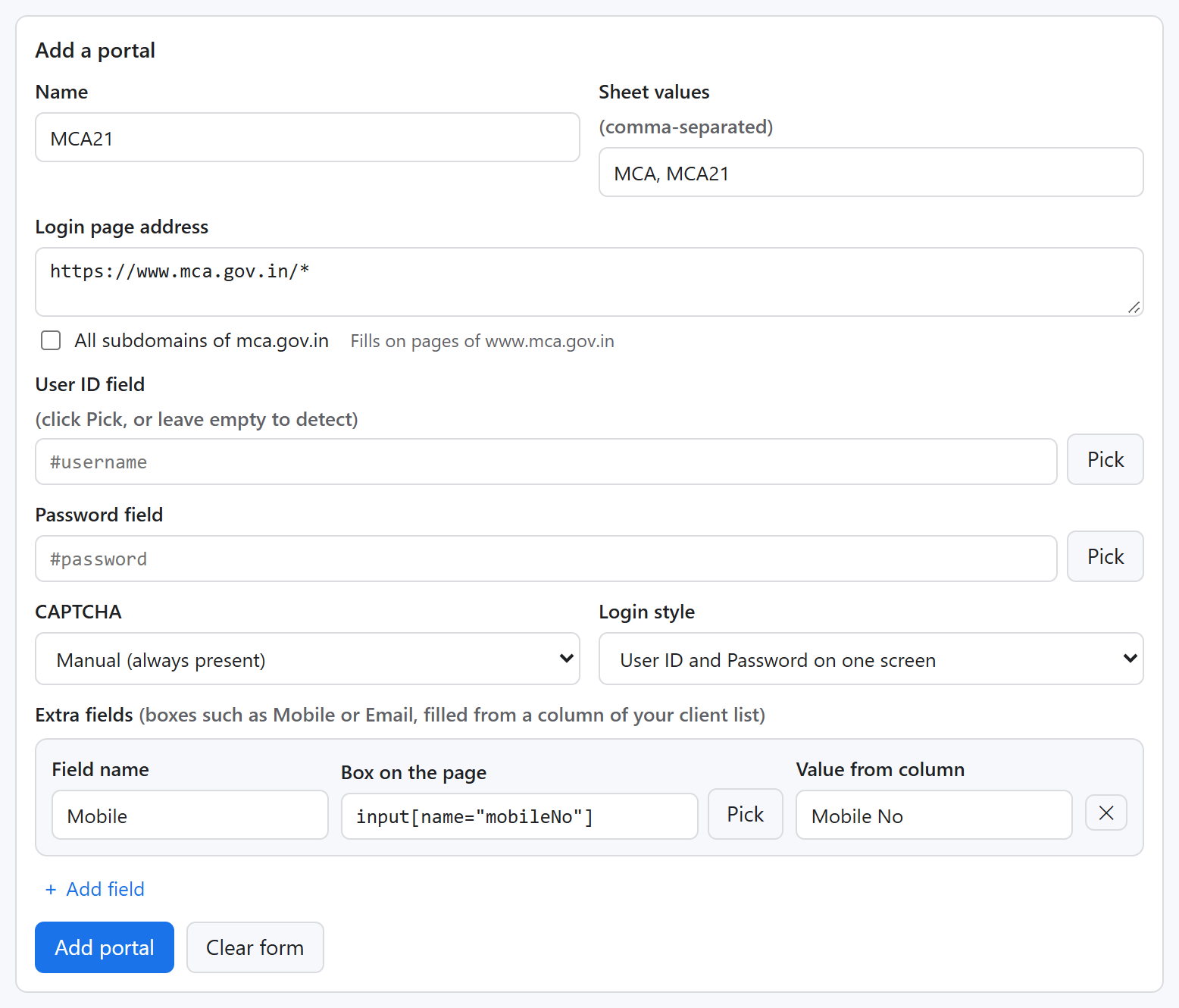
- 1Settings → Portals → paste the login page address. It becomes a pattern for that site (tick All subdomains if the portal uses several).
- 2Give it a name and the words your sheet uses for it.
- 3Leave the field boxes empty to let the filler find them, or click Pick to choose them exactly.
- 4Allow website access when asked (once per PC).
When a field isn't filled
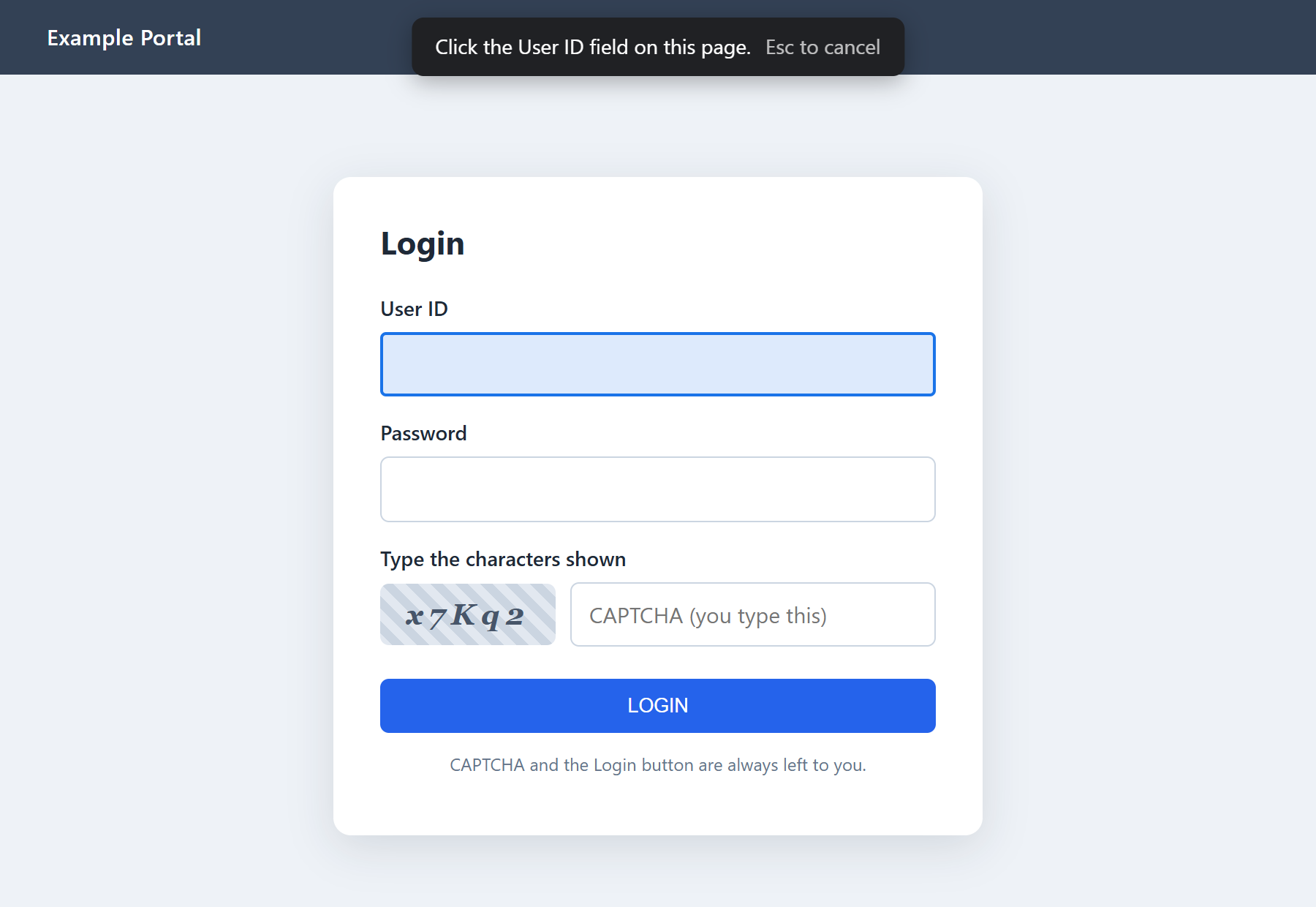
- 1Keep the login page open and click Configure Portal in the side panel.
- 2Click Pick beside User ID field, then click the User ID box on the page (Esc cancels).
- 3Do the same for the Password, then Save.
Login style: one screen, two screens (User ID then Password) or User ID only (OTP logins). Your own changes to a ready-made portal are kept when we update it, and ↺ restores our version.